A setting for the size of the interruption
A coding assistant can be correct and still arrive at the wrong moment. You might be deciding what an unfamiliar function means when the editor proposes the next three functions. The proposal creates another decision before you have finished the first one. That makes assistance a question of timing and review capacity as well as code quality.
In an October 26 post, the VS Code team described configurable eagerness for GitHub Copilot inline suggestions. Low favors fewer, smaller proposals; medium preserves the default behavior; high is more proactive and can suggest larger edits. These are behavioral preferences, not strict size limits. The team says the feature is available to paid Copilot subscribers in current VS Code with Next Edit Suggestions enabled. Although the page URL contains October 27, its displayed publication date is October 26.
Our interpretation is that the useful experiment is personal and task-specific. Do not ask which setting produces the most code. Ask which setting lets you finish work you can explain. The workflow below is a suggested comparison, not a test we ran or a claim about anyone’s productivity.
Source: VS Code: Tune GitHub Copilot Inline Suggestions with Configurable Eagerness ↗ · VS Code: Inline suggestions ↗ · VS Code: Keyboard shortcuts ↗ · Logitech G: PRO X2 RAPID product documentation ↗
Choose a finish line and a review budget
Start with something small enough to describe before opening the editor. For example, imagine a personal reading-list app that already stores titles and authors. You want to let users mark a book as finished and filter the list. That is a better experiment than asking the assistant to improve the whole app, because you can recognize whether it crossed the finish line.
Write down the behavior in everyday language. Marking one book finished should not change another book. The filter should show the intended subset. Turning the filter off should restore the original list. Decide separately whether the state must survive a refresh. If persistence is outside this exercise, say so instead of letting a suggestion quietly choose it.
Also name one thing you deliberately want to leave out. Perhaps you do not want a reading streak, social sharing, or a new database. Those exclusions give you a way to evaluate attractive extras. A suggestion that adds a streak might be clever, but it has spent attention on a different problem.
The task description should fit on a small note beside the editor. If you need several pages to explain success, narrow the experiment. You are comparing the experience of assistance, and a sprawling project introduces too many unrelated reasons for one session to feel harder than another.
For this exercise, separate review into understanding, correctness, and fit. Understanding means you can explain the proposed change. Correctness means it behaves as intended on relevant inputs. Fit means it belongs in this project and follows the scope you chose. These categories are our proposed observation method, not Copilot’s scoring system.
A suggestion may pass one category and fail another. A filter can behave correctly while using an unfamiliar abstraction you cannot maintain. A readable implementation can silently broaden the feature. A minimal edit can fit the plan yet mishandle an empty list. Treat those as different findings rather than collapsing everything into a thumbs-up.
After accepting a meaningful suggestion, pause long enough to describe its role. You should be able to say what data it receives, what it changes, and what would happen if that data were missing. If the answer is vague, inspect before accepting the next proposal. The point is to keep the chain of reasoning short enough to follow.
Do not turn this pause into a performance ritual after every punctuation mark. Reserve it for changes that affect behavior, ownership of state, or the shape of the implementation. You are setting an attention budget, and review itself should spend that budget where it helps.
Compare modes without turning the session into a benchmark
Use a disposable copy or branch of a project you understand. Save the starting point, keep the task note unchanged, and spend a short session with one mode. For another session, restore the same starting point or choose a closely matched task. Avoid comparing a familiar problem on the third attempt with a new problem on the first attempt.
Record only a few observations: when you stopped to inspect a proposal, which suggestions introduced new assumptions, and whether you reached the finish line. A rough duration can be useful, but do not mistake a ten-minute exercise for a scientific estimate of time savings. Familiarity, interruptions, and your own energy can easily dominate such a small comparison.
Consider switching the order on another day. Start with the more proactive mode when you are fresh, then try the conservative mode on a similar task later. If the result reverses, that is a reason to investigate rather than announce a winner. You may have learned more about task familiarity than about the setting.
Keep the rejected proposals in your notes only when they teach you something. You do not need to collect private source code or create a surveillance log. A short description such as “suggested persistence before the storage decision was made” often captures the problem better than a large transcript.
Keep setup problems outside the comparison. If one session loses several minutes to an extension update or a missing dependency, note that event and repeat the task later if the preference remains unclear. Do not quietly subtract inconvenient time from one mode while counting it against another. Your notes do not need statistical polish, but they should describe what happened consistently. The practical decision is whether you want to keep using the setting tomorrow, and an honest account of the session gives that decision more value.
Watch for attractive work you did not ask for
Imagine the assistant proposes a polished status panel while you are implementing the finished-book filter. The panel may be easy to accept because it looks like progress. It also creates text to edit, layout to maintain, and behavior to explain. The first question is whether it advances the task note, not whether it looks finished.
Try classifying extra work as necessary, optional, or unrelated. Necessary work enables the requested behavior. Optional work could improve the feature after it is correct. Unrelated work belongs elsewhere. Make those decisions yourself; asking the same assistant to justify every expansion can turn its proposal into its own evidence.
This gives you a more useful outcome than a raw acceptance count. One session might produce fewer accepted suggestions because the assistant offered ambitious extras. Another might produce many accepted suggestions that were almost trivial. Neither number tells you how much useful, understood work survived review.
You can also distinguish a proposal that supplies an implementation from one that supplies a requirement. When the assistant invents a sorting order, a retention rule, or a new field, it has made a product decision. Stop and name that decision. Coding assistance should not make an unresolved choice disappear merely by expressing it in valid syntax.
Check what your keys actually do
The physical action of accepting code deserves a quick check. VS Code’s documentation distinguishes accepting inline completions from navigating to and accepting a next-edit suggestion. The Tab key can participate in these interactions. Its keyboard shortcut editor lets you inspect commands and conflicting bindings, which is useful if an extension or custom keymap makes the editor behave unexpectedly.
Before changing hardware or adding macros, try the relevant actions slowly in a scratch file. Notice whether the first press moves your attention, inserts text, or does something else. Then repeat with your usual extensions active. This is a proposed usability check, not a suggestion that any particular keyboard causes unwanted acceptance.
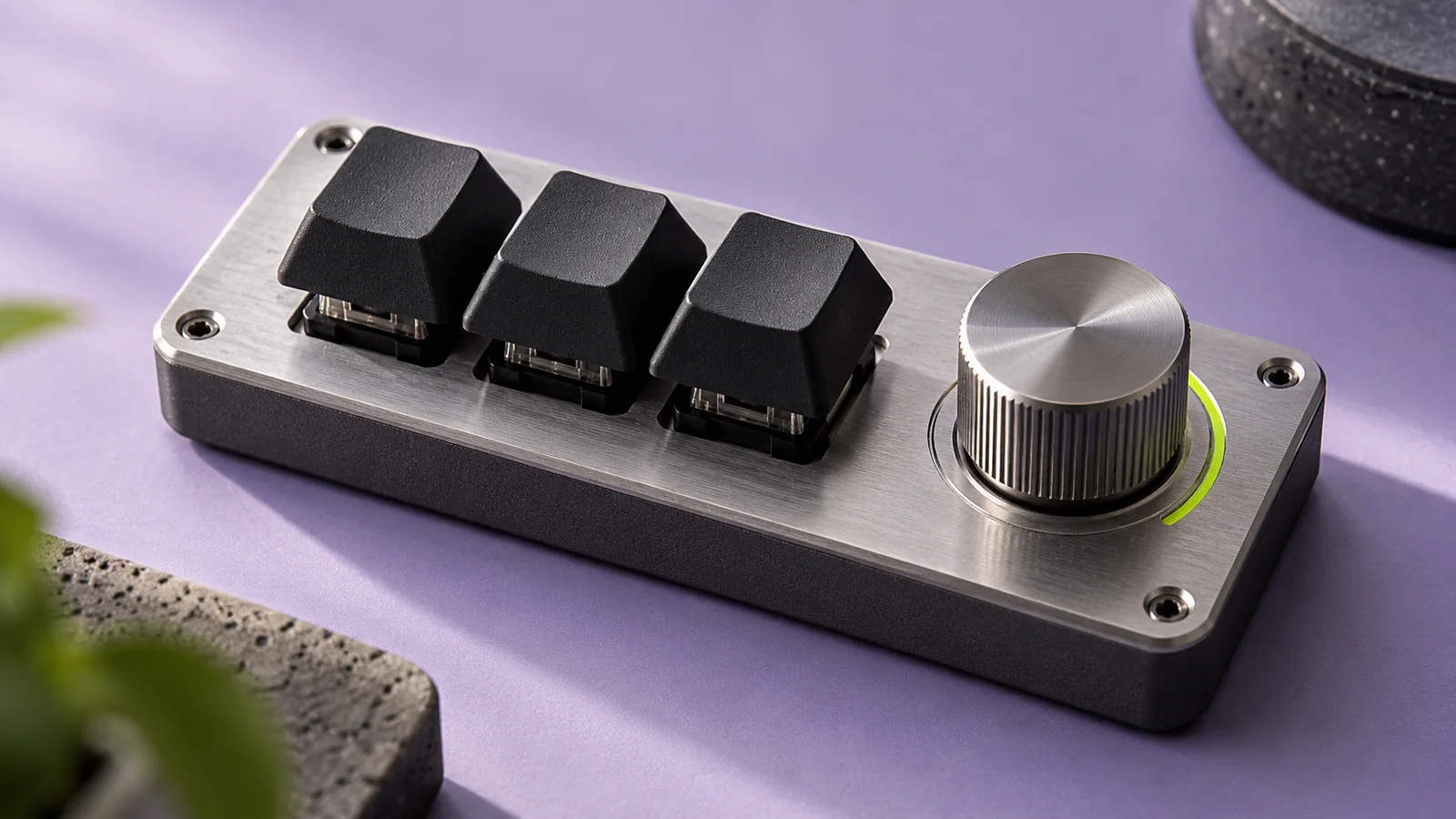
If you are already choosing a physical keyboard, the Logitech G PRO X2 Rapid wired keyboard (affiliate link) is an optional example; Logitech documents adjustable actuation and onboard controls, but those features do not establish better AI review or coding performance. Your existing keyboard and the editor’s own shortcut settings are enough for the exercise.
As an Amazon Associate I earn from qualifying purchases. This optional recommendation is not a claim of hands-on testing.
Keep a route to dismissing or ignoring a proposal that feels as ordinary as accepting one. If your workflow makes acceptance effortless and review awkward, a more proactive mode may amplify that imbalance. Adjust the editor interaction first, then reassess how much assistance you want.
Match assistance to the task and keep a working agreement
A blank implementation and an unfamiliar bug are different situations. In the first, you might know the desired behavior and want help expressing it. In the second, you may not yet know which assumption is wrong. Treating them as the same kind of work can make a personal preference look like a universal rule.
For a familiar repetitive edit, you could try the more proactive setting while keeping a narrow scope. For a debugging session, you could first read the relevant path without accepting new behavior, then invite suggestions after you have a hypothesis. These are options to compare, not claims that one mode is objectively best for either task.
Learning introduces another goal. If you are practicing a language concept, the result includes what you can reproduce without assistance. A complete answer may remove the part you intended to learn. Try writing your expected approach in plain language before looking at the proposal, then compare the two after solving the exercise.
In collaborative work, explain the reasoning behind your preference without prescribing it to everyone. A teammate’s familiarity with a component may differ from yours. Agree on what must be reviewed and what finished means; let the interruption setting remain a tool for reaching those shared outcomes.
At the end, write a short decision for your next session. It might say that low eagerness worked well while exploring an unfamiliar code path, or that a proactive mode helped with a repetitive migration once the pattern was established. Include the task context so the note remains meaningful later.
Add a condition that would make you revisit the choice. A new language, a large editor update, or a change in the kind of project could all matter. This prevents a quick preference test from hardening into an identity: you are choosing an interaction for a job, not deciding what kind of developer you are.
If no mode clearly helps, keep the simpler arrangement. You can still ask for assistance deliberately when you reach a bounded question. There is no requirement to fill every pause in thinking with a suggestion. A moment in which the editor offers nothing can be useful when you are deciding what the software should do.
The lasting artifact is a task note, a reviewed change, and a preference you can explain. That is a stronger outcome than a screen full of generated code whose assumptions you have not had time to notice. A good attention budget leaves room for both the assistant’s contribution and your own understanding.
Try this, then make it yours.
Use a disposable reading-list feature to compare two eagerness modes. Keep the finish line fixed and record assumptions, review pauses, and the final behavior.
Explore the tool ↗Follow the signal.
Our reporting starts here. Practical suggestions are our analysis, and vendor performance statements are claims unless independently verified. We haven’t hands-on tested this release.
- VS Code: Tune GitHub Copilot Inline Suggestions with Configurable Eagerness ↗ · 2026-10-26
- VS Code: Inline suggestions ↗
- VS Code: Keyboard shortcuts ↗
- Logitech G: PRO X2 RAPID product documentation ↗