The useful shortcut comes after the generation
Adobe’s current Photoshop documentation describes Prompt to edit for whole-image AI changes and Generative Fill for a selected area. Its separate non-destructive-editing guide explains approaches such as adjustment layers, masks, and Smart Objects for preserving source content.
This is a workflow explainer, not a newly announced release or a claim that every AI operation preserves every detail. Our recommendation is to make reviewing a change convenient before making generation or export faster.
Source: Adobe: Edit images with Prompt to edit ↗ · Adobe: Non-destructive editing techniques ↗ · Logitech: MX Creative Console ↗ · Logitech: Logi Options+ software and current downloads ↗
Define the part you meant to change
Start with a copy of an image you own or are permitted to edit. Write one intended change and one thing that should remain intact. For a simple still life, that might be a different background while the object’s shape and surface markings stay consistent.
After generating a candidate, inspect the whole frame before zooming into the important details. A result can look coherent at thumbnail size and still alter a feature you intended to retain. Keep your original outside the experiment and use your editor’s documented layer and save options to preserve a recoverable project.
If the task only needs a tonal adjustment or crop, consider the ordinary editing tools first. The goal is the intended result with an understandable path back, not using AI for every operation.
Give your controls separate jobs
For a first control setup, choose one supported action that helps inspection and a separate action that saves your working project. Check the exact command in the active app before assigning it. Avoid a single multi-action shortcut that generates, accepts, and exports before you have inspected the candidate.
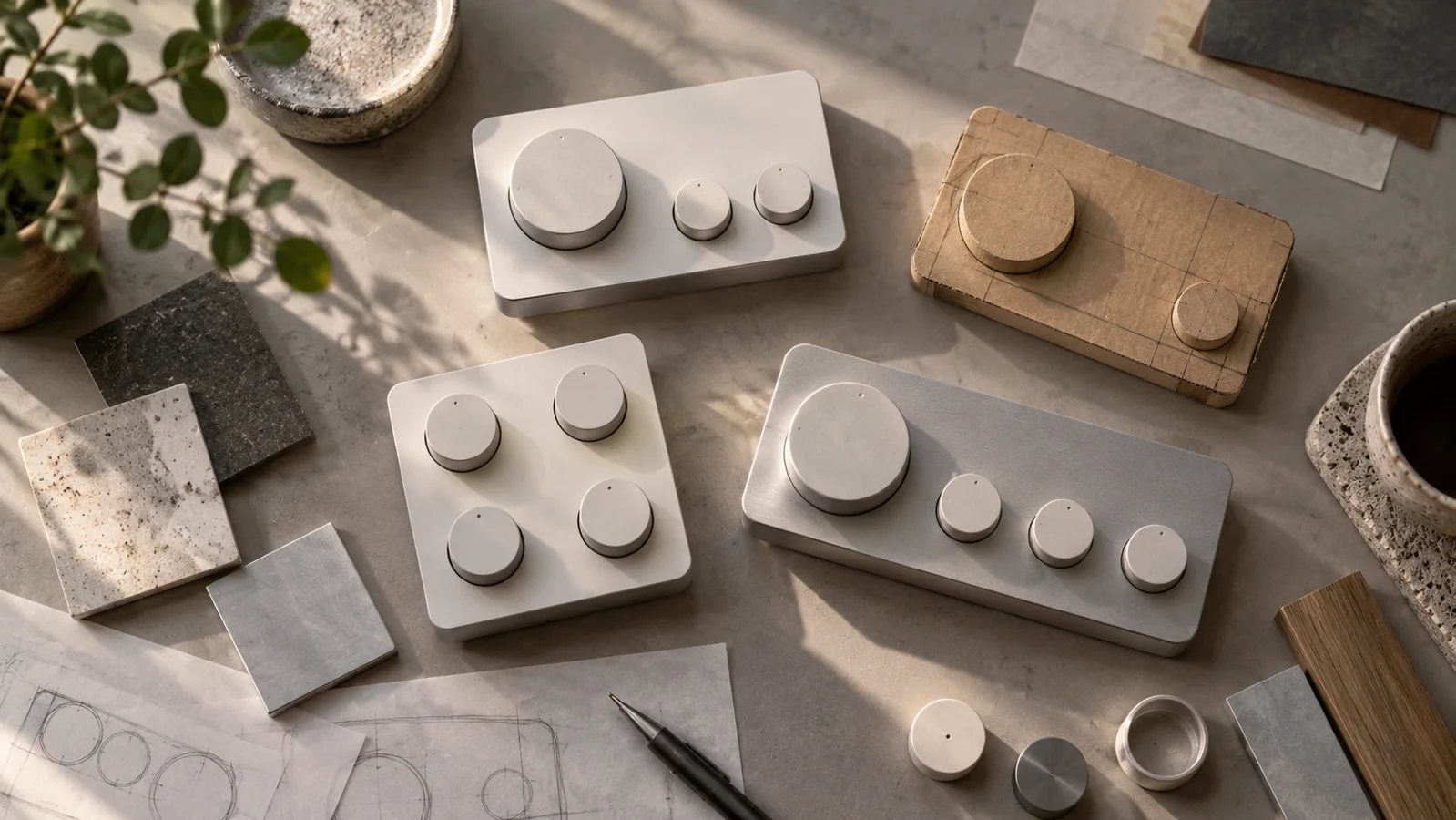
The Logitech MX Creative Console (affiliate link) is an optional way to place supported app actions on physical controls through Logi Options+; verify your operating system, plugin, and app version before assigning them. Your existing keyboard shortcuts can support the same review habit, and the console does not automatically make an AI edit accurate or provide every app’s AI features.
As an Amazon Associate I earn from qualifying purchases. This optional recommendation is not a claim of hands-on testing.
Do not assume a profile shown for one editor works identically in another. Test each assigned control on a disposable copy before putting it into your regular workflow.
Keep the review smaller than the experiment
Use one candidate and three checks: did the requested change happen, did the protected details remain intact, and can you return to the source? These are proposed checks, not results from our testing.
If a check fails, record the issue before generating another version. Otherwise it is easy to accumulate attractive alternatives without learning what your instructions or controls need to change.
When sharing the result, describe AI edits honestly where that context matters. A clean workflow should make it easier to explain what changed, not merely easier to publish it.
Try this, then make it yours.
On a disposable image copy, verify one review command and one save command before assigning either to a shortcut or controller.
Explore the tool ↗Follow the signal.
Our reporting starts here. Practical suggestions are our analysis, and vendor performance statements are claims unless independently verified. We haven’t hands-on tested this release.
- Adobe: Edit images with Prompt to edit ↗ · 2026-10-05
- Adobe: Non-destructive editing techniques ↗ · 2026-09-28
- Logitech: MX Creative Console ↗
- Logitech: Logi Options+ software and current downloads ↗